
A factory reset wipes everything on the MacBook and returns it to the setup screen. People do it for two reasons: to sell or give the laptop away, or to start fresh when macOS has become slow or unreliable. The “without losing data” part comes down to one thing: backing up properly first.
Here’s the safe order to do it.
💾 Step 1: Back Up
Time Machine (recommended)
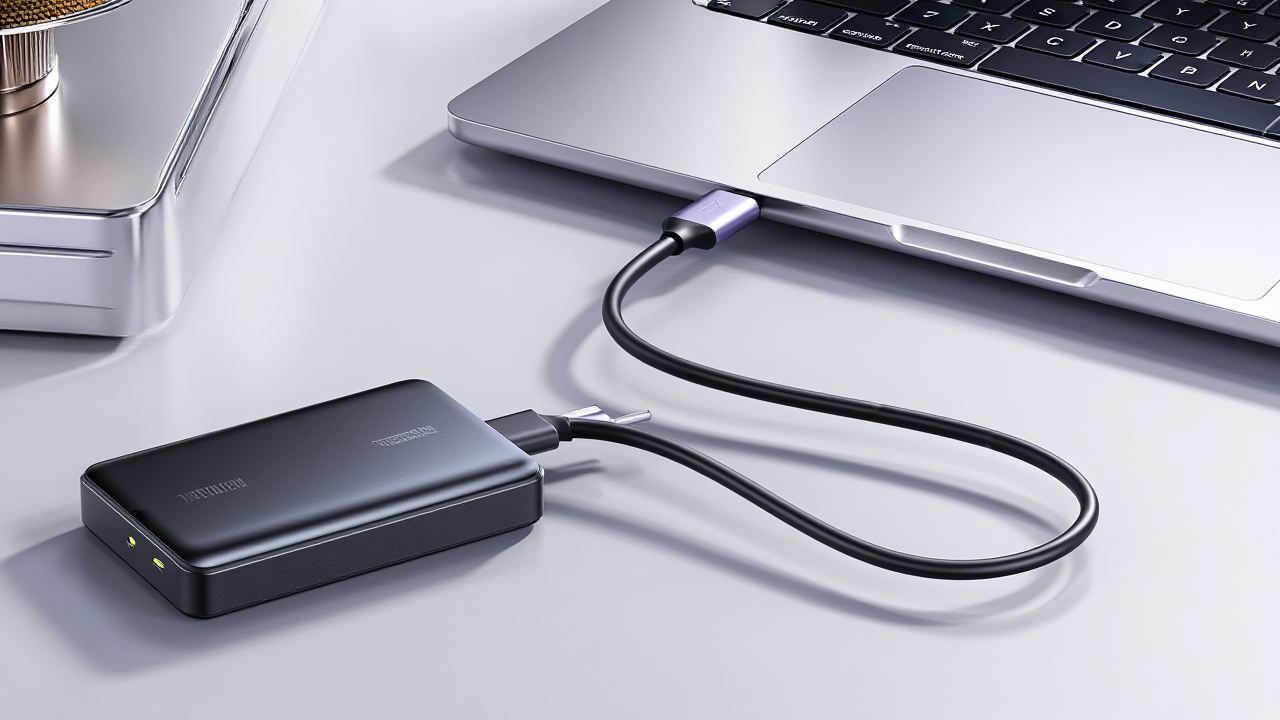
Plug in an external drive at least as large as your MacBook’s storage. Open System Settings → General → Time Machine, add the drive as a backup disk, and click Back Up Now. Let the first backup finish completely; it can take a few hours.
iCloud
Make sure Desktop & Documents, Photos and iCloud Drive are fully synced before you continue. Log in to iCloud.com from another device and check your files are actually there. iCloud is convenient, but it doesn’t back up apps, settings or anything outside those folders.
Passwords in iCloud Keychain, licences for paid apps like Microsoft Office or Adobe, and any files kept in the Downloads folder.
🚪 Step 2: Sign Out of Everything
- iCloud: System Settings → your name → Sign Out. This also turns off Find My.
- Find My Mac: must be off. If you skip this, the next owner will be blocked by Activation Lock.
- App Store and Messages: sign out of both.
- Bluetooth devices: unpair any keyboard, mouse or AirPods you’re keeping.
🧹 Step 3: Erase the Mac
macOS Monterey or later
Most MacBooks from 2018 onwards. Go to System Settings → General → Transfer or Reset → Erase All Content and Settings. Enter your password and follow the prompts. This removes your data, accounts and settings but keeps macOS installed, so it’s quick.
Older macOS versions
- Restart and hold Command + R (Intel) to open Recovery. On Apple Silicon, hold the power button until “Loading startup options” appears, then choose Options.
- Open Disk Utility, select Macintosh HD and click Erase.
- Quit Disk Utility and choose Reinstall macOS.
📥 Step 4: Restore Your Data (If You’re Keeping It)
When the setup screen appears, use Migration Assistant to transfer from your Time Machine backup, or sign in to iCloud and let your files sync back down. Reinstall your apps from the App Store and re-enter licence keys for others.
If you’re selling the MacBook, stop at the “Hello” screen and shut it down. The new owner will set it up themselves.
🔧 Stuck or Not Booting?
We can often recover data from MacBooks that won’t boot before doing a clean reinstall. See our MacBook repair services.
❓ Frequently Asked Questions
Does a factory reset make my MacBook faster?
Often, yes, if the slowdown is from software clutter. If restoring a full Time Machine backup, you’ll bring some of that clutter back, so consider reinstalling apps fresh.
Is my data really gone after erasing?
On MacBooks with Apple Silicon or a T2 chip, the storage is encrypted, so erasing makes old data unreadable. That covers almost all MacBooks from 2018 onwards.
How long does it take?
“Erase All Content and Settings” takes about 10 minutes. A full reinstall from Recovery takes 30–90 minutes depending on your internet speed.
📞 Get Help
MacBook Won’t Reset or Start?
Free diagnosis, data recovery and clean macOS installs
Ang Mo Kio Central (703 AMK Ave 8) | Jurong East (Westgate #03-K2) | Bugis (62 Queen St) | Marine Parade (Parkway Parade #B1-45)
Open daily from 11am

