

A second screen is one of the cheapest productivity upgrades you can make. Spreadsheets on one side and email on the other, a video call next to your notes, or a game on one screen and a guide on the other. No more constant alt-tabbing.
Setup usually takes about five minutes. The only part that trips people up is getting the right cable, so we’ll start there.
🔌 Step 1: Check Your Ports
Look at what your laptop or PC has, then check the inputs on the monitor.
Matching ports (HDMI to HDMI, for example) are simplest. If they don’t match, a single adapter cable is fine. On a desktop with a graphics card, plug the monitors into the graphics card, not the ports on the motherboard, or the second screen may not show anything.
💻 Step 2: Connect and Power On
Plug in the second monitor and turn it on. Windows usually detects it within a few seconds and mirrors your main screen by default. If nothing appears, check the monitor’s input source button and select the right port.
↔ Step 3: Choose Extend
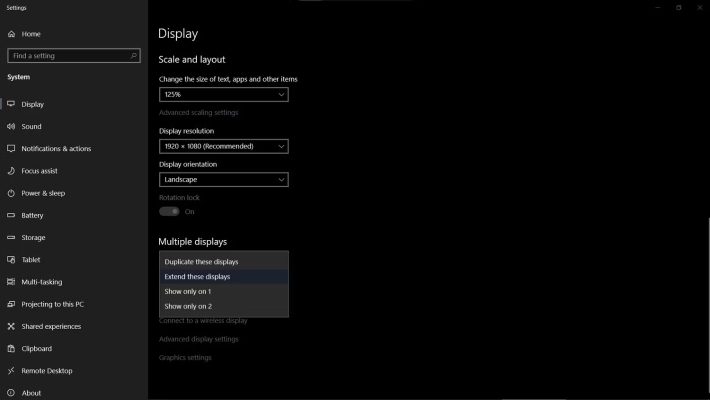
Press Windows + P and pick Extend. Each screen now shows different content and you can drag windows between them. The other options are useful too: Duplicate for presentations, and Second screen only when your laptop is closed on a stand.
📐 Step 4: Arrange the Screens
Go to Settings → System → Display. You’ll see numbered boxes for each screen. Drag them so they match where the monitors physically sit on your desk, otherwise your mouse will jump out of the wrong side. Click Identify if you’re not sure which is which. If one monitor sits higher than the other, line up the boxes vertically too.

⚙ Step 5: Main Display, Scaling and Refresh Rate
- Main display: select the screen you want the taskbar and Start menu on and tick Make this my main display.
- Scaling: if text looks too big or small on one screen, change Scale for that screen only.
- Refresh rate: under Advanced display, pick the highest refresh rate your monitor supports. Many 144Hz monitors run at 60Hz until you change this.
- Taskbar: in Taskbar settings you can choose whether the taskbar shows on both screens.
Windows + Shift + Left or Right arrow moves the active window to the other screen instantly.
⭐ Tips for a Cleaner Setup
- Monitors of the same size and resolution look best side by side. A 1080p screen next to a 4K one can look blurry by comparison.
- A monitor arm frees up desk space and makes it easy to line the screens up at the same height.
- Laptops: put the laptop on a stand so its screen sits closer to the monitor’s height, or use a USB-C dock to connect everything with one cable.
🛠 Second Screen Not Working?
- Check the monitor’s input source.
- Try a different cable. Cheap HDMI cables fail more often than you’d think.
- Press Windows + Ctrl + Shift + B to reset the graphics driver.
- Update your graphics driver from Intel, AMD or NVIDIA.
- Try the monitor with another computer to rule out the screen itself.
If the laptop’s HDMI port is loose or dead, that’s a repair we can do.
❓ Frequently Asked Questions
Can my laptop run two external monitors?
Most can run at least one. For two, you usually need a Thunderbolt or USB-C port that supports multiple displays, or a dock. MacBooks with base M1 and M2 chips support only one external screen natively.
Does a second monitor slow down my computer?
For everyday work, no. For gaming, keep the game on one screen and avoid video playing on the other if frame rates matter.
Why is my second monitor stuck at 60Hz?
Check the refresh rate in Advanced display settings, and use DisplayPort or a high-speed HDMI cable. Older HDMI cables can limit it.
📞 Get Help
Display Port Not Working?
Free diagnosis for HDMI, USB-C and graphics faults at all four outlets
Ang Mo Kio Central (703 AMK Ave 8) | Jurong East (Westgate #03-K2) | Bugis (62 Queen St) | Marine Parade (Parkway Parade #B1-45)
Open daily from 11am

