
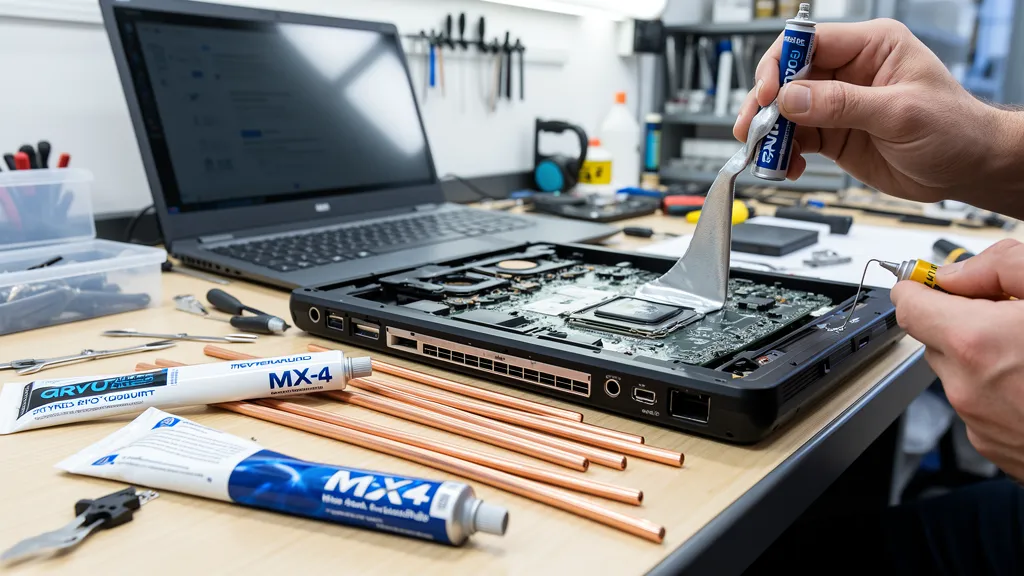
How to Apply Thermal Paste for Laptop CPU & GPU in Singapore
If your laptop has been running hot, throttling during video calls, or shutting down unexpectedly — dried thermal paste is one of the most common culprits. Applying fresh thermal paste for your laptop CPU and GPU is one of the most effective ways to bring temperatures back down and restore performance. At Affordable Laptop Services, it’s one of the most common repairs we do across all brands.
Laptop Overheating? GET IMMEDIATE HELP →
Why Choose Us for Laptop Thermal Paste Service
✓ Same-Day Service
✓ Laptop CPU & GPU Thermal Paste Specialists
✓ Thermal Pad Replacement Included on Request
✓ 3-Month Warranty
✓ All Brands Supported
✓ From $50
Why Laptop Thermal Paste Is Different from Desktop
Applying thermal paste for a laptop CPU or GPU is significantly more involved than doing it on a desktop. Laptops use compact, shared heatsinks that cool both the CPU and GPU die simultaneously through a single heatpipe assembly. There’s no room for error — the heatsink must be remounted with correct and even torque across multiple screws, often in a specific sequence, to ensure full contact across both dies.
On top of that, many laptops — especially slim ultrabooks and gaming models — also use thermal pads on VRAM chips, VRM components, and M.2 SSD controllers. These pads degrade alongside the paste and should be replaced at the same time. Skipping them leaves a weak link in the thermal chain even after fresh paste is applied.
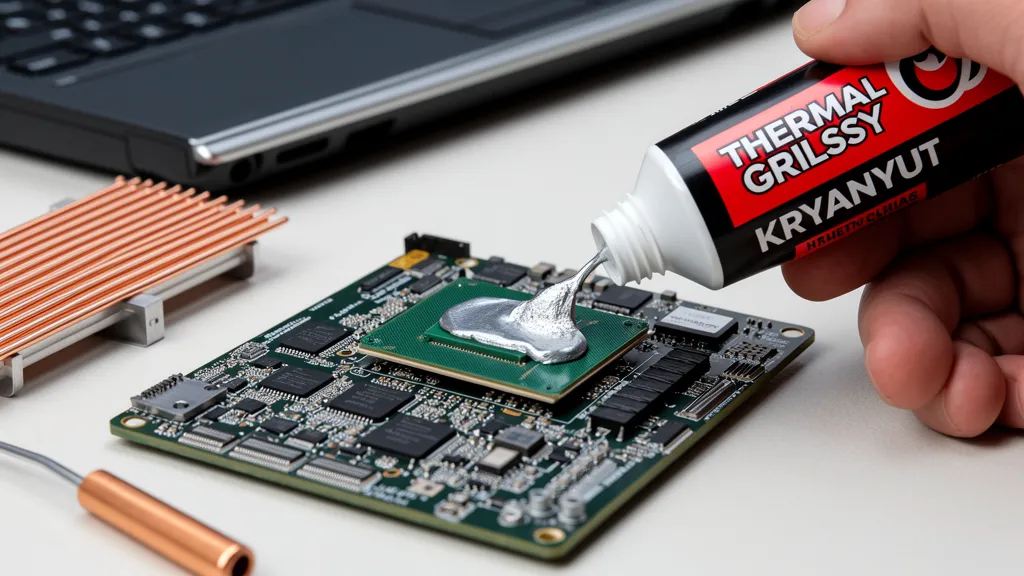
Signs Your Laptop Needs Fresh Thermal Paste
Thermal paste in laptops typically lasts 2–3 years before it starts drying out — less in Singapore’s heat and humidity. These are the most common signs it’s time to apply fresh thermal paste for your laptop CPU or GPU:
- CPU or GPU temps above 85–95°C under normal use or light gaming
- Thermal throttling — laptop slows down noticeably during Teams calls, editing, or gaming
- Fan running at full speed constantly even on simple tasks like browsing
- Sudden shutdowns — thermal protection cutting power to prevent hardware damage
- Laptop hot to touch on the keyboard deck, palm rest, or base
- FPS drops in games that didn’t happen before
- Laptop older than 2–3 years with no prior thermal maintenance
What We Check Before Applying Thermal Paste
Not every overheating laptop needs a thermal paste replacement. Before we open anything up, we run a full temperature diagnostic using HWMonitor and HWiNFO to confirm the root cause. Sometimes the fix is simply a deep fan clean — dust-clogged heatsink fins are just as common a culprit as dried paste. We’ll tell you exactly what’s causing the heat before any work begins.
All diagnostics are 100% FREE with no obligation to repair.
Our Laptop Thermal Paste Application Process
Step 1: Temperature Diagnosis (FREE)
- Log CPU and GPU temps under load using HWMonitor / HWiNFO
- Confirm whether root cause is paste, dust, or fan failure
- Give you an upfront quote before anything is opened
Step 2: Full Disassembly
- Bottom panel removed carefully — all screws tracked by position
- Internal components protected from static and physical damage
Step 3: Heatsink & Fan Removal
- Shared heatpipe assembly lifted clear
- Fan blades and heatsink fins cleaned of dust at the same time
Step 4: Old Paste Removal
- Dried compound stripped from both CPU and GPU die
- 99% isopropyl alcohol and lint-free applicators used throughout
Step 5: Thermal Pad Inspection
- VRAM, VRM, and SSD thermal pads inspected
- Dried or compressed pads replaced with correct-thickness replacements
Step 6: Fresh Paste Application
- Arctic MX-4 or Thermal Grizzly Kryonaut applied depending on system
- Correct method used for each die size — centre dot or spread as appropriate
Step 7: Reassembly with Correct Torque
- Heatsink screws tightened in the correct sequence
- Critical on slim laptops where uneven pressure causes poor contact
Step 8: Stress Test
- Full CPU and GPU load test run post-reassembly
- Temperatures logged to confirm improvement before handover
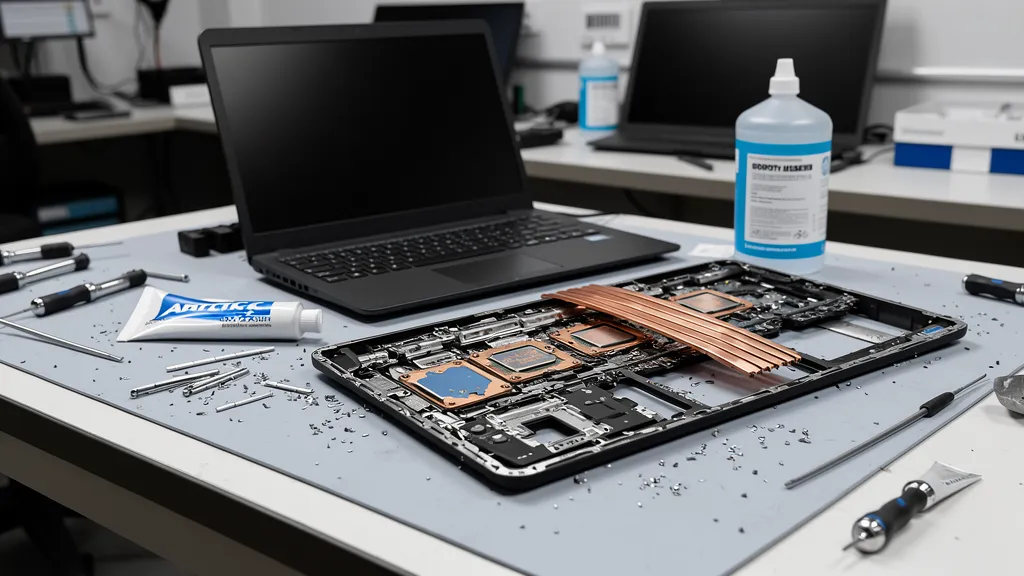
Laptop Thermal Paste Service Pricing
Pricing depends on the laptop model, chassis complexity, and whether thermal pads also need replacing. A quote is given after the free diagnosis — no obligation to proceed.
| Service | Estimated Time | Price (SGD) |
|---|---|---|
| Apply Thermal Paste – Laptop CPU | 45 – 90 min | From $50 |
| Apply Thermal Paste – Laptop CPU & GPU (shared heatsink) | 1 – 1.5 hours | From $70 |
| Thermal Paste + Thermal Pad Replacement | 1 – 2 hours | From $90 |
| Full Thermal Service (paste + pads + fan clean) | 1.5 – 2 hours | From $120 |
All repairs include 3-month warranty. Most services completed same-day.
Laptop Brands We Service
We apply thermal paste for laptop CPUs and GPUs across all major brands, including:
- Dell — XPS 13/15/17, Inspiron, Latitude, Alienware m15/m17/x14/x15/x17
- HP — Spectre, Envy, Pavilion, Omen, EliteBook, ProBook
- Lenovo — ThinkPad, IdeaPad, Yoga, Legion 5/7/Pro
- Asus — ZenBook, VivoBook, ROG Strix, ROG Zephyrus, TUF Gaming
- Acer — Swift, Aspire, Predator Helios, Nitro 5
- MSI — GE, GS, GP, GF gaming series
- Razer — Blade 14, Blade 15, Blade 17
- Apple MacBook — Intel models (MacBook Pro 13/15/16, MacBook Air)
Gaming Laptops: Why Thermal Paste Matters More
Gaming laptops push their CPUs and GPUs harder and longer than any other laptop category. Models like the Asus ROG Strix, Lenovo Legion, Alienware, and Acer Predator are particularly sensitive to thermal paste degradation — they run hotter by design, which accelerates the drying process. On these machines, dried paste doesn’t just cause discomfort; it directly caps your FPS and triggers thermal throttling mid-game.
We recommend gaming laptop owners apply fresh thermal paste every 1.5–2 years, or immediately if temperatures are climbing above 90°C under load.
Frequently Asked Questions – Laptop Thermal Paste Singapore
How often should I apply fresh thermal paste for my laptop CPU and GPU?
Every 2–3 years for most laptops. Gaming laptops should be done every 1.5–2 years due to higher sustained temperatures. Singapore’s heat and humidity accelerate paste degradation, so err on the side of doing it sooner.
Can applying thermal paste damage my laptop?
When done correctly, no. The risk comes from incorrect heatsink torque (uneven pressure), using the wrong paste quantity, or not replacing thermal pads at the correct thickness. This is why we recommend professional service for laptops — the margin for error is much smaller than on a desktop.
How much does laptop thermal paste replacement cost in Singapore?
From $50 for a basic CPU paste replacement, up to $120+ for a full thermal service including paste, pads, and fan cleaning. Final price depends on your laptop model and what the diagnosis reveals.
Will it make a noticeable difference?
Yes — typically 10–20°C improvement on laptops with dried paste. On throttling systems, this directly translates to better performance: smoother gameplay, faster rendering, and less fan noise.
Do you also clean the fans during a thermal paste service?
Yes. Since the heatsink is already removed, we clean the fan blades and heatsink fins as part of the service. Dust-clogged fins are a major contributor to poor thermal performance even with fresh paste. If your laptop mainly needs a fan clean rather than a paste replacement, see our dedicated laptop fan cleaning service.
Does the service come with a warranty?
Yes — all thermal paste services at Affordable Laptop Services include a 3-month warranty. If temperatures return to pre-service levels within that period, we re-service at no charge.
Get Your Laptop Running Cool Again →
Related Services
Loud fan or overheating laptop? Professional fan cleaning and dust removal. From $40.
Grinding, rattling, or non-spinning GPU fan. Same-day repair and replacement. From $50.
Maximum thermal upgrade for gaming laptops. Thermal Grizzly Conductonaut. From $120.

